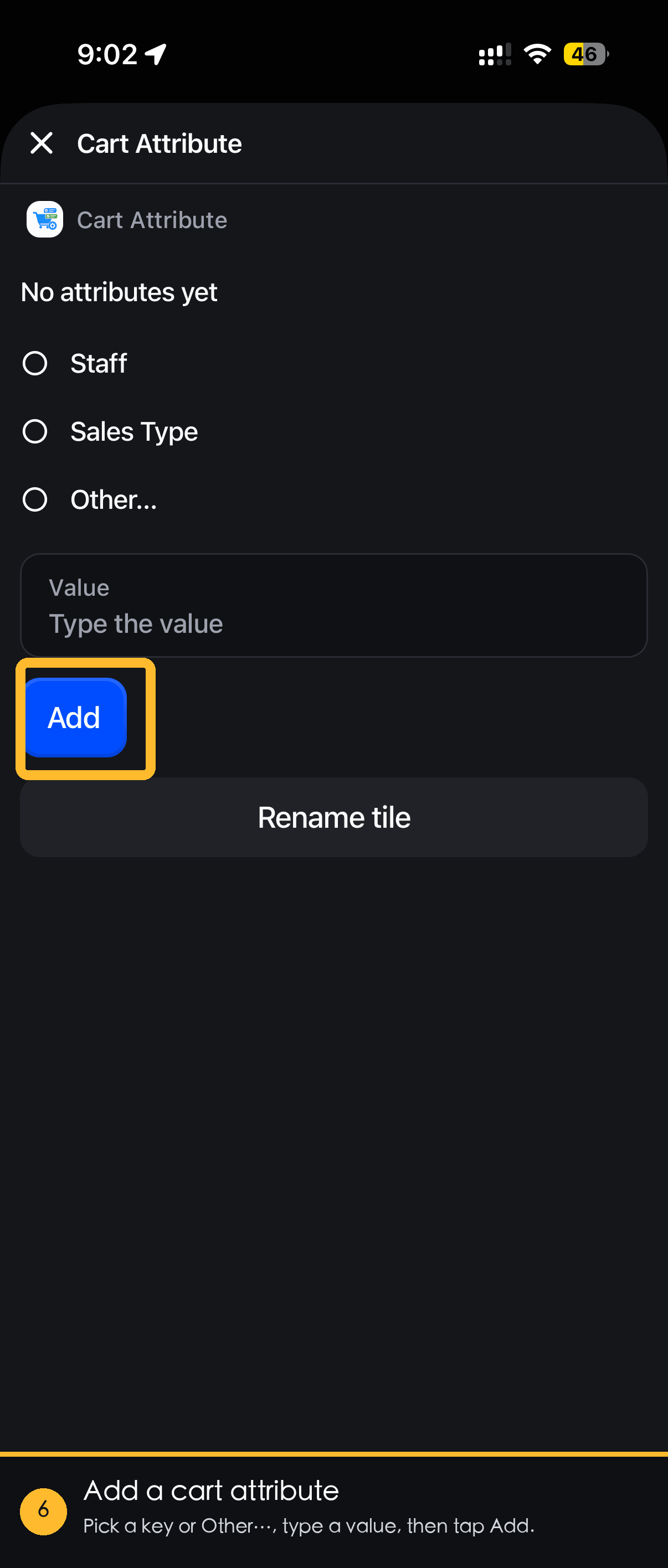
Deprecated POS form — key list and Add
This is the deprecated register form. Staff pick one key, type a value, and tap Add. It applies when the POS app on that device still shows a key list.
The current form lists every field at once and uses Save. See the Staff guide.
Keys on this form come from Shop metafields. Those steps are on Shop metafields.
Screenshots use a demo store. Your tile label and key lists may differ.
Cart-level attributes (smart-grid tile)
Section titled “Cart-level attributes (smart-grid tile)”Use cart-level attributes when one value applies to the whole sale (for example staff name, sale type, or an order reference).
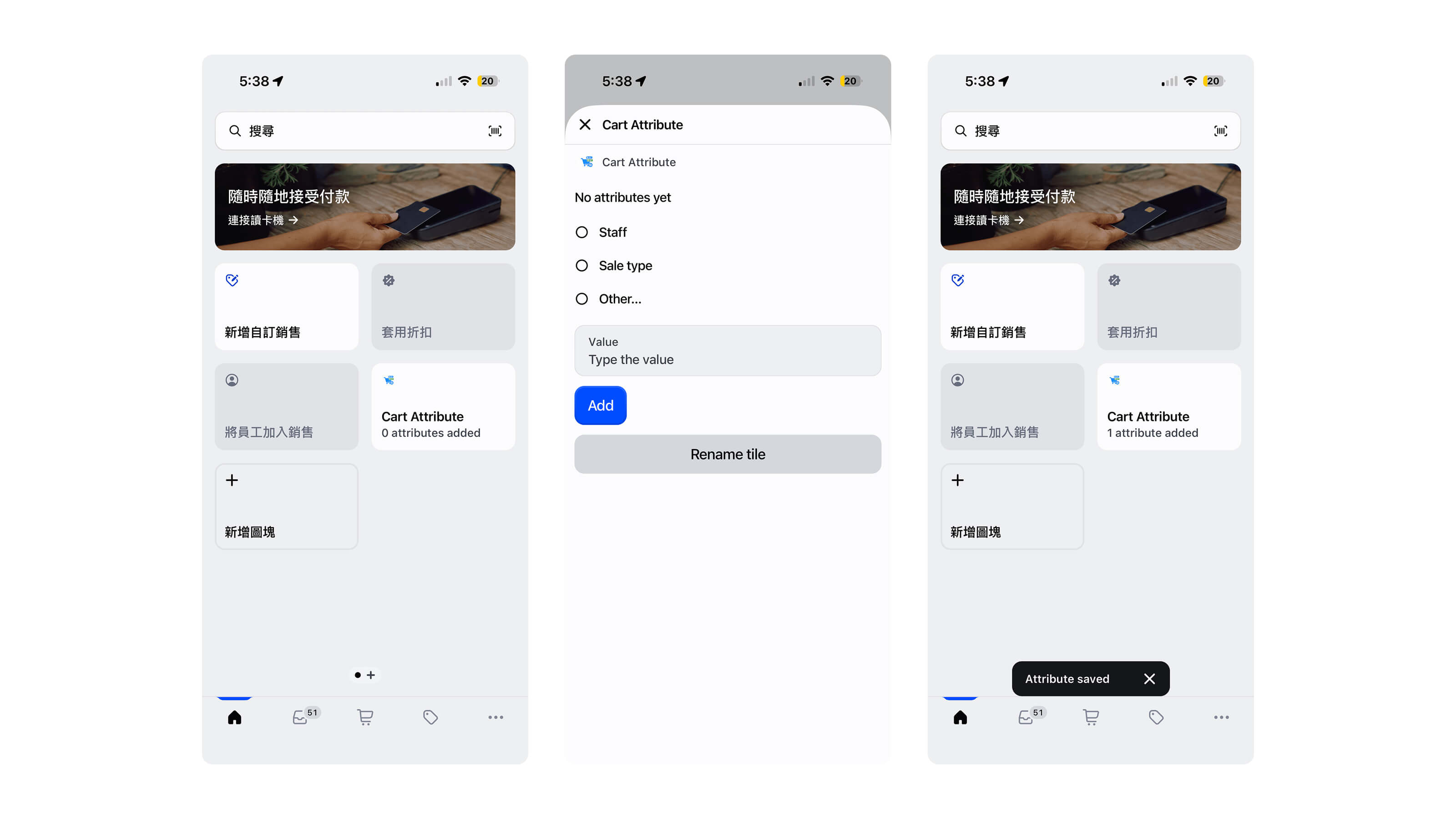
- On the POS home screen, tap the Cart Attribute tile on the smart grid.
- In the modal, pick a key (for example Staff or Sale type) or Other…, enter a value, and tap Add.
- The tile subheading updates (for example
1 attribute added) and a confirmation toast appears.
To update an existing row, change the value and tap Save. To remove, tap Delete. Rename tile is optional. The custom tile name is saved on this device only.
If you do not see the tile, add it from Add tile on the smart grid. See Setup.
Line-item attributes
Section titled “Line-item attributes”Use line-item attributes when each product needs its own value (for example a serial number or a warranty date).
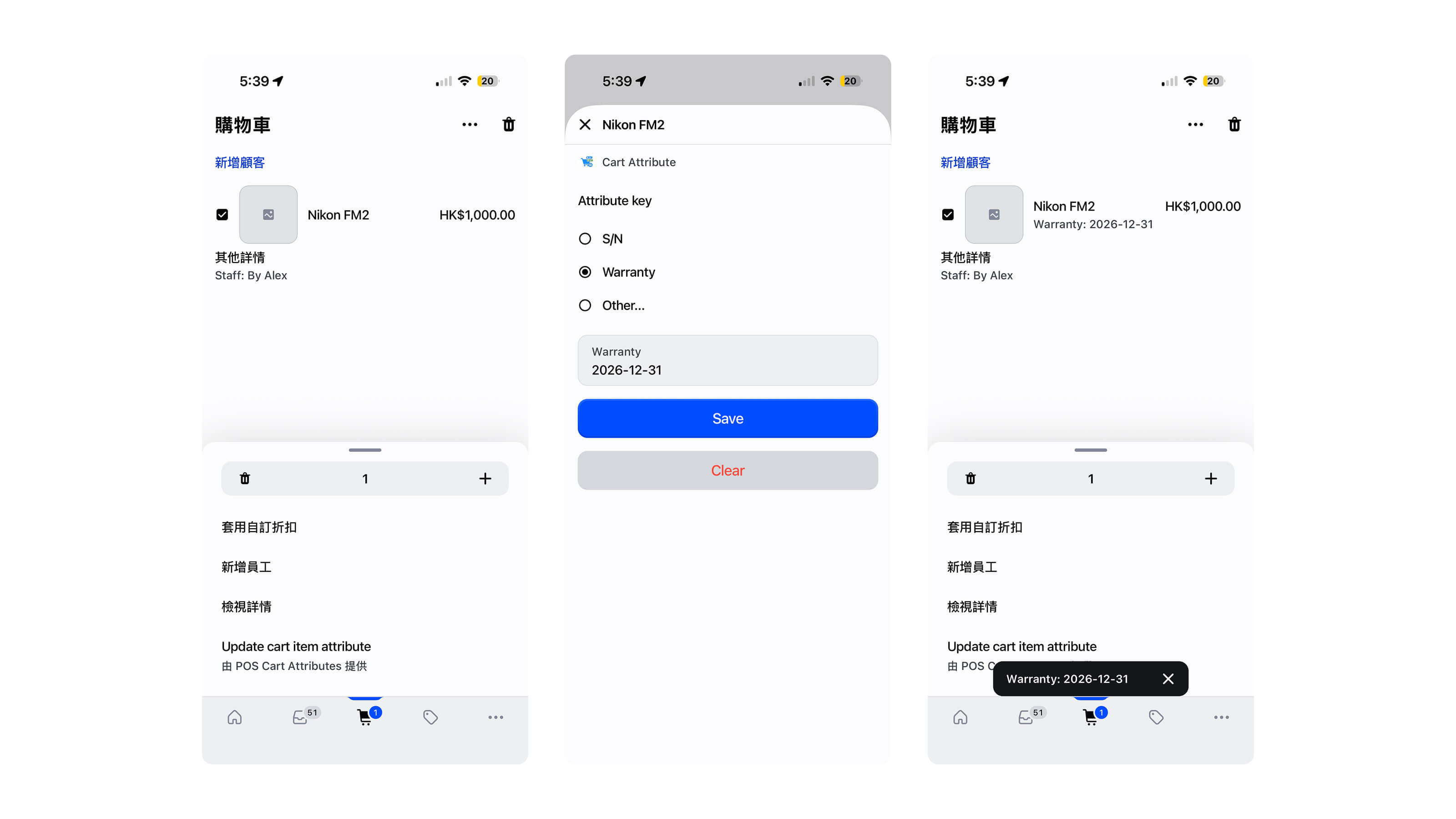
- Add products to the cart, then tap a line item.
- In the action menu, tap Update cart item attribute.
- Pick a key (for example S/N or Warranty) or Other…, enter the value, and tap Save.
The saved value appears under the product in the cart (for example Warranty: 2026-12-31). To clear, open the same key again and tap Clear.
Cart-level and line-item together
Section titled “Cart-level and line-item together”You can use both flows on the same sale:
- Cart tile — order-wide values (for example
Staff,Sale type) - Line-item menu — per-product values (for example
S/N,Warranty)
Complete checkout as usual. Attributes are saved on the order.
Verify after checkout
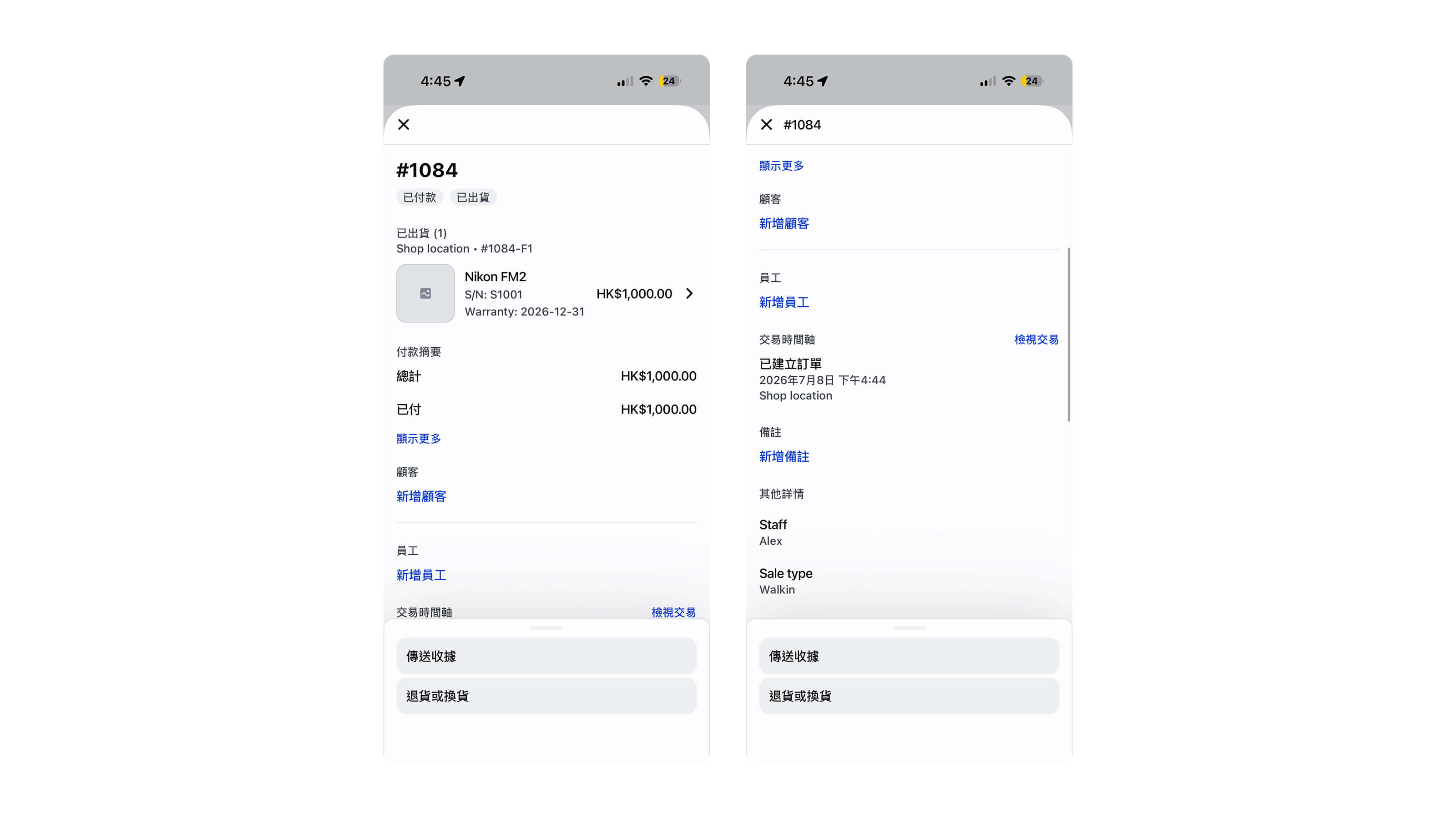
Section titled “Verify after checkout”Open the order in POS or admin:
- Line-item attributes appear under each product (for example
S/N: S1001,Warranty: 2026-12-31) - Cart-level attributes appear under Other details (for example
Staff: Alex,Sale type: Walkin)
If the list shows only Other…
Section titled “If the list shows only Other…”- Confirm
pos_cart_attr.keysandpos_cart_attr.item_keysexist and have at least one row. See Shop metafields. - Check the namespace and key spelling.
- Enable the app under Point of Sale → Settings → POS apps.