Shop metafields — deprecated POS Cart Attributes setup
These two Shop metafields are the deprecated way to list attribute keys. POS still reads them. Each key is a plain text field on the form.
New fields, with a display name, a cart or line-item location, and an input type, are attribute fields. An entry with the same attribute name replaces that text field.
Where to edit
Section titled “Where to edit”Go to Settings → Custom data → Shop (or Shop metafields).
Create two metafields under namespace pos_cart_attr.
Cart-level keys (keys)
Section titled “Cart-level keys (keys)”- Namespace:
pos_cart_attr - Key:
keys - Type: Single line text (List)
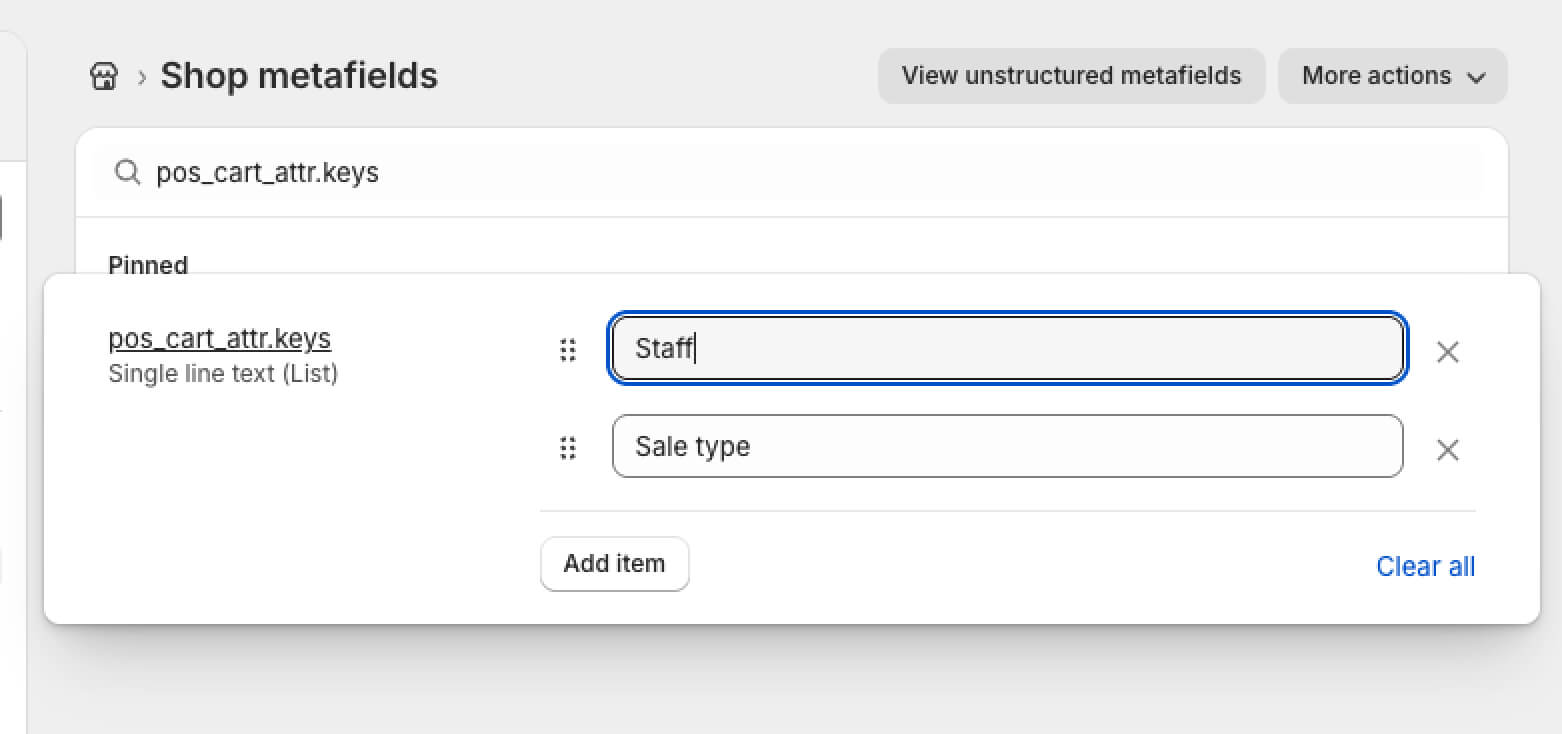
Add one row per cart-level key, for example Staff or Sale type. Each row is a text field on the Cart Attribute tile.
Line-item keys (item_keys)
Section titled “Line-item keys (item_keys)”- Namespace:
pos_cart_attr - Key:
item_keys - Type: Single line text (List)
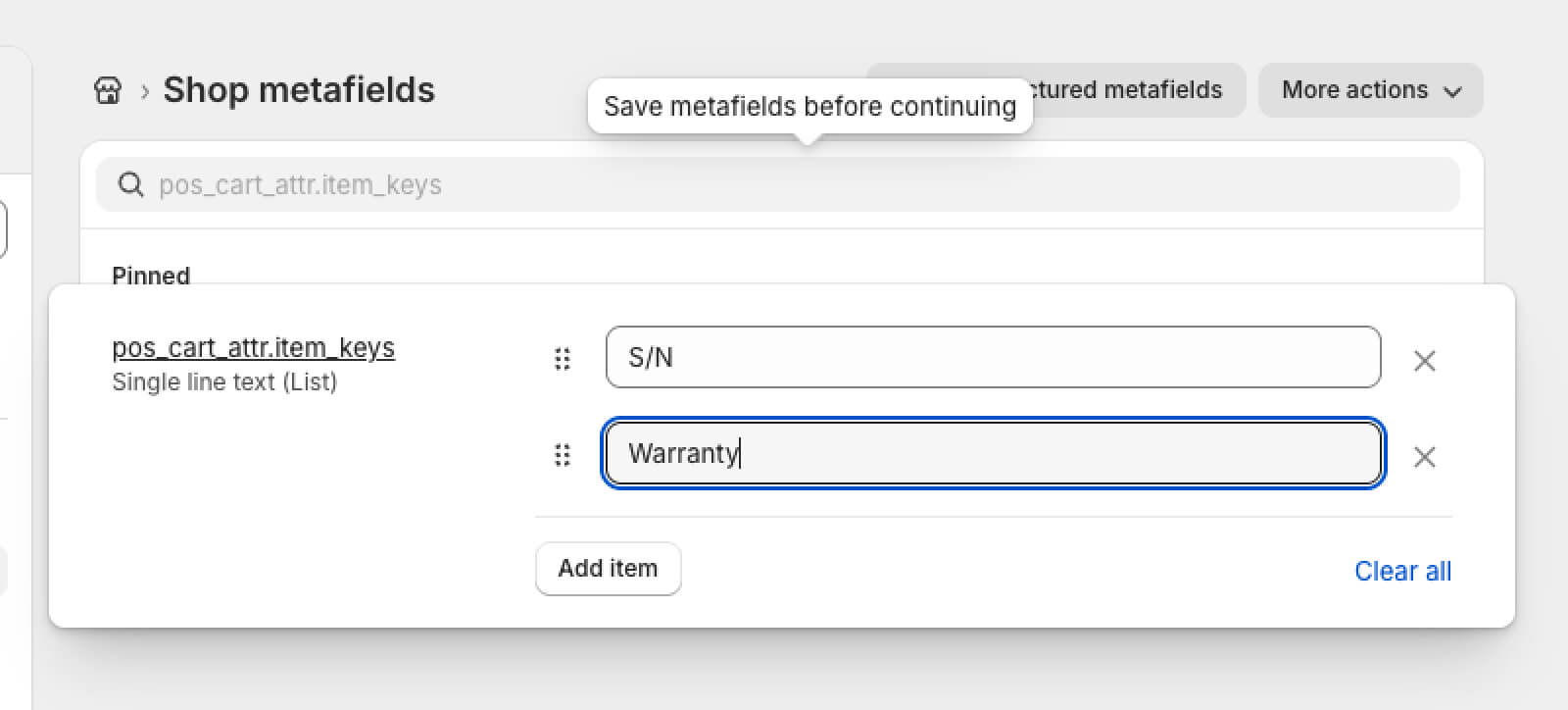
Add one row per line-item key, for example SN or Warranty. Each row is a text field on Update cart item attribute.
The namespace and key must match exactly. A typo is the most common reason those fields do not appear.
Changes to these lists are read live by POS. No app redeploy is needed when you edit the rows.
Screenshots
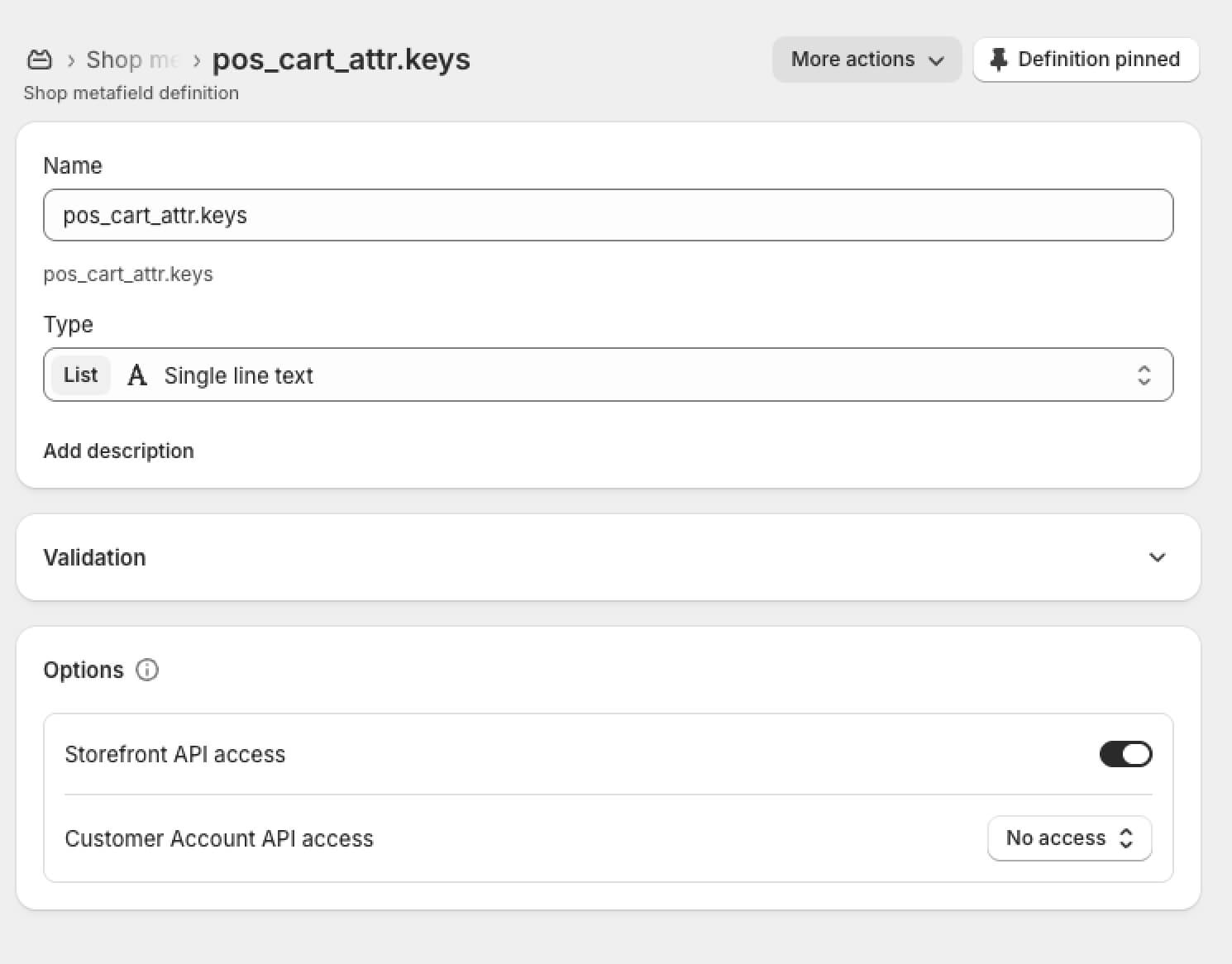
Section titled “Screenshots”Step 1 — Create the cart-level definition (pos_cart_attr.keys)
Section titled “Step 1 — Create the cart-level definition (pos_cart_attr.keys)”Add a Shop metafield definition:
- Name:
pos_cart_attr.keys - Type: List → Single line text
Step 2 — Add cart-level key values
Section titled “Step 2 — Add cart-level key values”Open Shop metafields, search for pos_cart_attr.keys, and add one row per cart-level key.
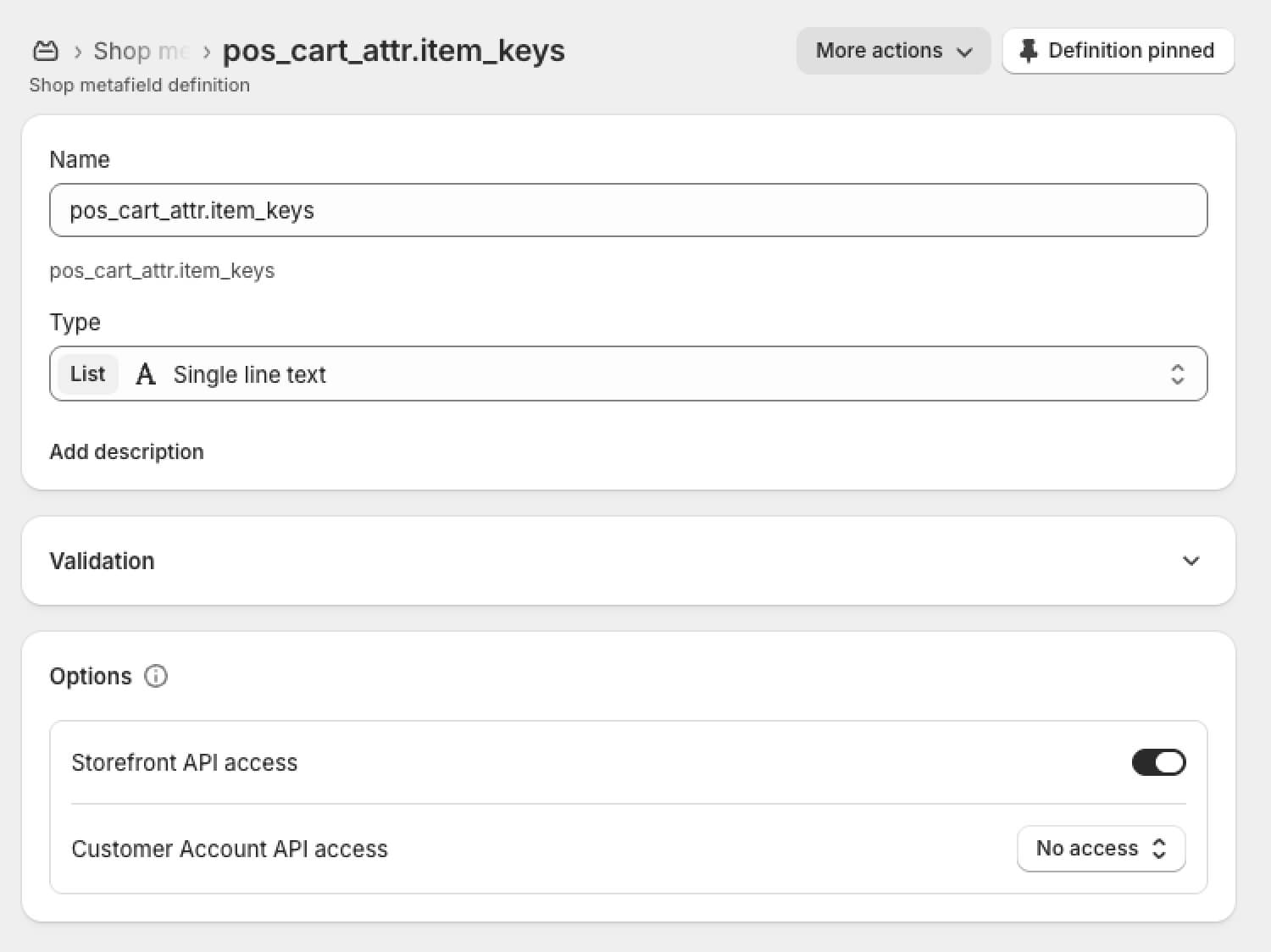
Step 3 — Create the line-item definition (pos_cart_attr.item_keys)
Section titled “Step 3 — Create the line-item definition (pos_cart_attr.item_keys)”Add a second Shop metafield definition:
- Name:
pos_cart_attr.item_keys - Type: List → Single line text
Step 4 — Add line-item key values
Section titled “Step 4 — Add line-item key values”Search for pos_cart_attr.item_keys and add one row per line-item key.
After the lists are saved, continue with Setup — add the smart-grid tile.