Troubleshooting POS Cart Attributes — fix key lists & load errors
Only Other… appears in the key list
Section titled “Only Other… appears in the key list”- Confirm Shop metafields exist:
pos_cart_attr.keys(cart tile) and/orpos_cart_attr.item_keys(line items). - Check namespace and key spelling exactly.
- Confirm the metafield lists have at least one row.
- Enable the app under Point of Sale → Settings → POS apps.
Modal shows Couldn’t load
Section titled “Modal shows Couldn’t load”- Check POS network connection.
- Re-enable the app under POS apps.
- Quit and reopen the POS app.
- Confirm the logged-in staff member has access to the app.
Keys updated in admin but POS still shows the old list
Section titled “Keys updated in admin but POS still shows the old list”- Quit and reopen the POS app to refresh.
- Wait a moment and reopen the modal.
Tile not visible on POS home screen
Section titled “Tile not visible on POS home screen”- Manually add Cart Attribute via Add tile on the smart grid. The tile is not auto-placed on install.
Attribute saved but not on printed receipt
Section titled “Attribute saved but not on printed receipt”- Per-item attributes require customized POS Pro receipt Liquid. Contact your admin or developer to add
line_item.custom_attributesto the receipt template. - Cart-level attributes may not appear on all POS receipt setups; use line-item attributes when printing is required.
Attribute not visible in admin after checkout
Section titled “Attribute not visible in admin after checkout”- Cart-level: check order custom attributes / additional details in the order admin page.
- Line-item: open the order and inspect properties on the relevant line item.
Subscription inactive warning on POS
Section titled “Subscription inactive warning on POS”If staff see Subscription inactive — ask admin to refresh on the smart-grid tile, or a yellow warning banner in the cart or line-item modal, the store’s app subscription is not active.
What staff see (example):
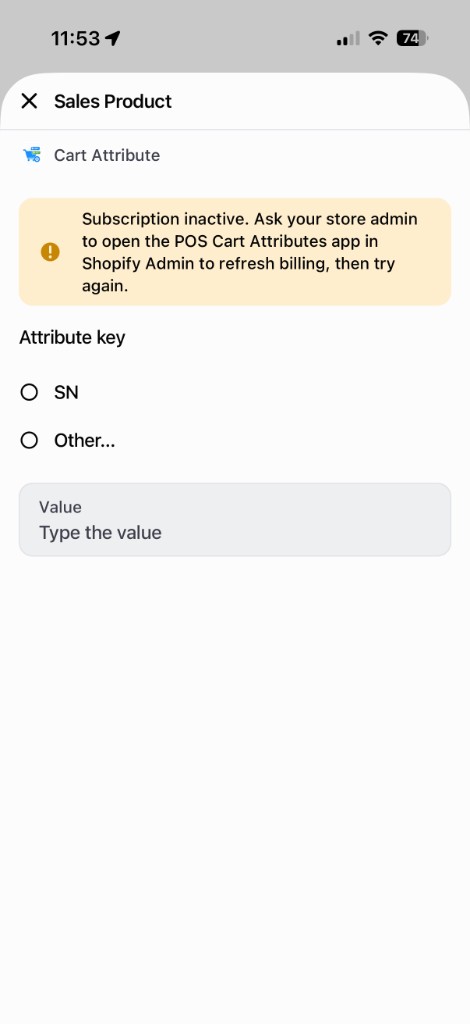
The app shows plain-language instructions (as above), not error codes like (0x001). Save, Add, and Clear stay disabled until billing is active again.
What to do
| Role | Action |
|---|---|
| POS staff | Tell your store admin. You can still view existing attributes, but Save / Add / Clear are disabled until billing is active again. |
| Store admin | In Shopify Admin → Apps, open POS Cart Attributes. Complete plan selection or re-subscribe if prompted. |
| After billing is fixed | Staff close and reopen the POS tile or modal — no app redeploy needed. If the warning remains, quit and reopen the Shopify POS app. |
Redirected to plan selection when opening the app
Section titled “Redirected to plan selection when opening the app”- Expected when no active App Pricing subscription is on file.
- The plan is $4/month with a 7-day free trial. Complete plan selection in Shopify Admin, then return to the setup guide.
- Install or re-open the listing from the Shopify App Store if you still need to add the app to your store.
- For billing questions, email tech@k2.digital.