Staff guide — add cart & line-item attributes on Shopify POS
How to use POS Cart Attributes during a sale. Admins should install POS Cart Attributes first ($4/month, 7-day free trial) and complete Setup.
Screenshots below use a demo store. Your tile label and key lists may differ depending on admin setup.
Cart-level attributes (smart-grid tile)
Section titled “Cart-level attributes (smart-grid tile)”Use cart-level attributes when one value applies to the whole sale (e.g. staff name, sale type, order reference).
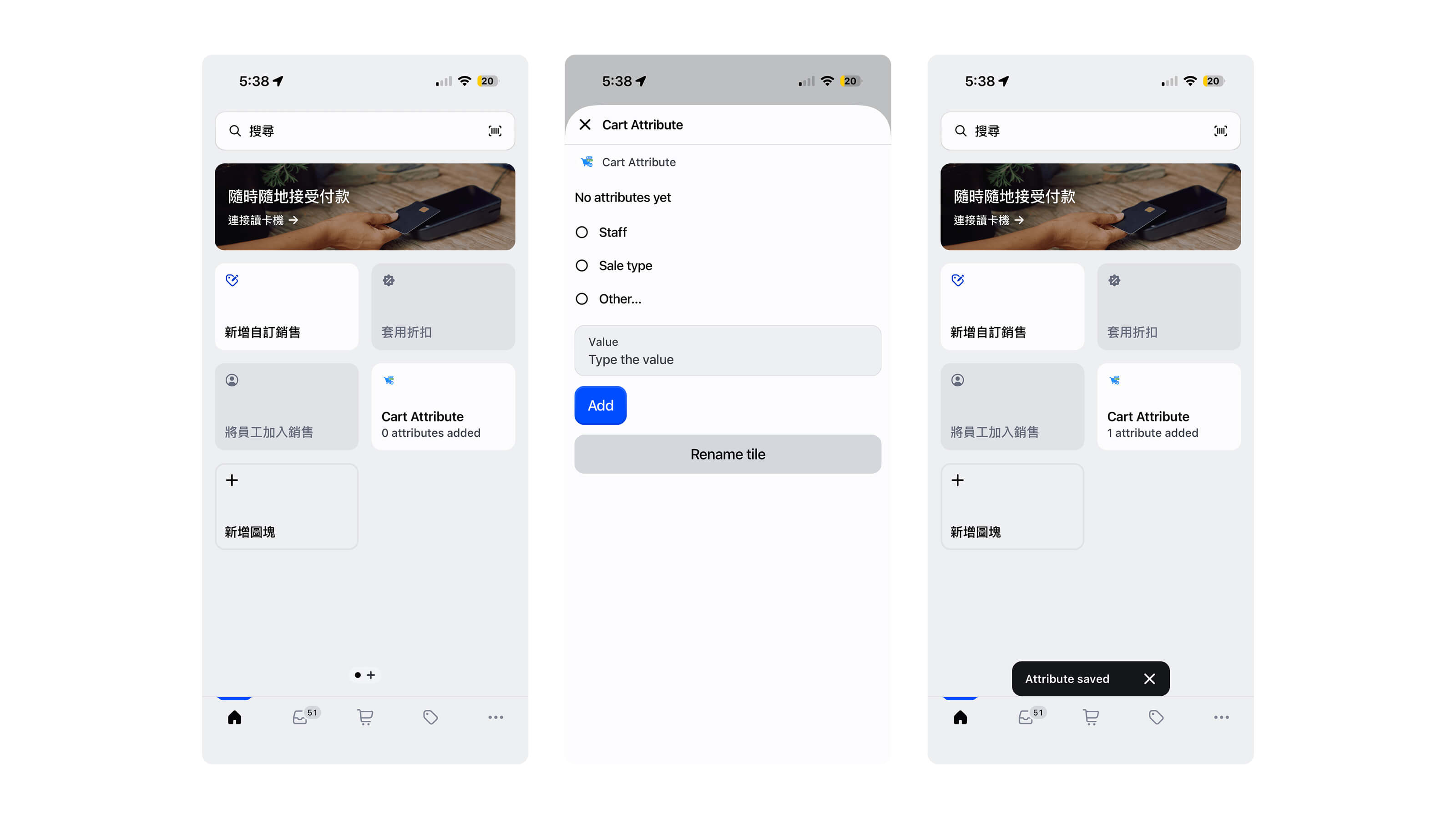
- On the POS home screen, tap the Cart Attribute tile on the smart grid.
- In the modal, pick a key (e.g. Staff, Sale type) or Other…, enter a value, and tap Add.
- The tile subheading updates (e.g.
1 attribute added) and a confirmation toast appears.
To update an existing row, change the value and tap Save. To remove, tap Delete. Rename tile (optional) — set a custom tile name at the bottom of the modal; saved on this device only.
If you do not see the tile, add it via Add tile on the smart grid (see Setup).
Line-item attributes
Section titled “Line-item attributes”Use line-item attributes when each product needs its own value (e.g. serial number, warranty date).
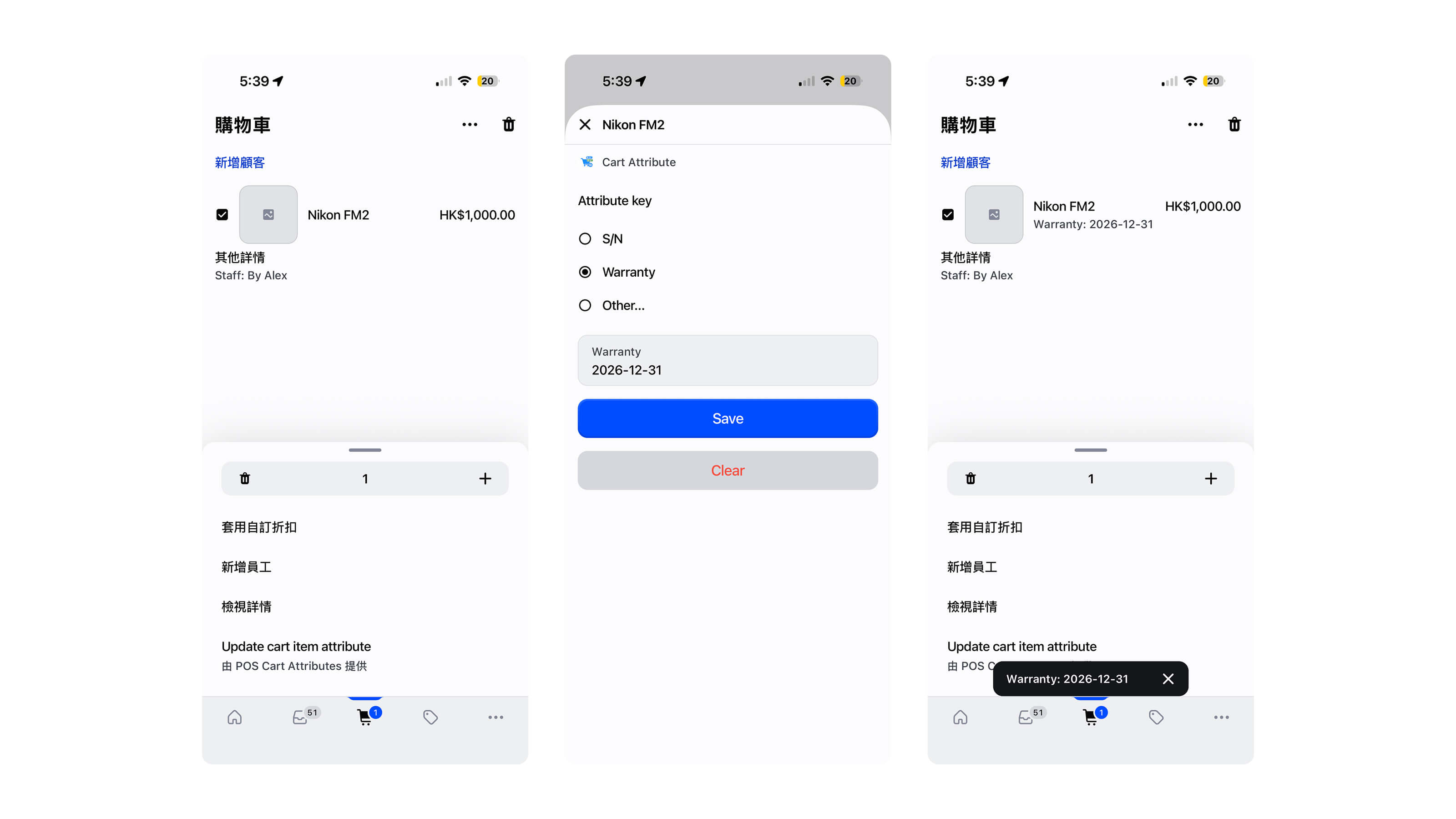
- Add products to the cart, then tap a line item.
- In the action menu, tap Update cart item attribute (provided by POS Cart Attributes).
- Pick a key (e.g. S/N, Warranty) or Other…, enter the value, and tap Save.
The saved value appears under the product in the cart (e.g. Warranty: 2026-12-31). To clear, open the same key again and tap Clear.
Cart-level + line-item together
Section titled “Cart-level + line-item together”You can use both flows on the same sale:
- Cart tile — order-wide values (e.g.
Staff,Sale type) - Line-item menu — per-product values (e.g.
S/N,Warranty)
Complete checkout as usual. Attributes are saved on the order.
Verify after checkout
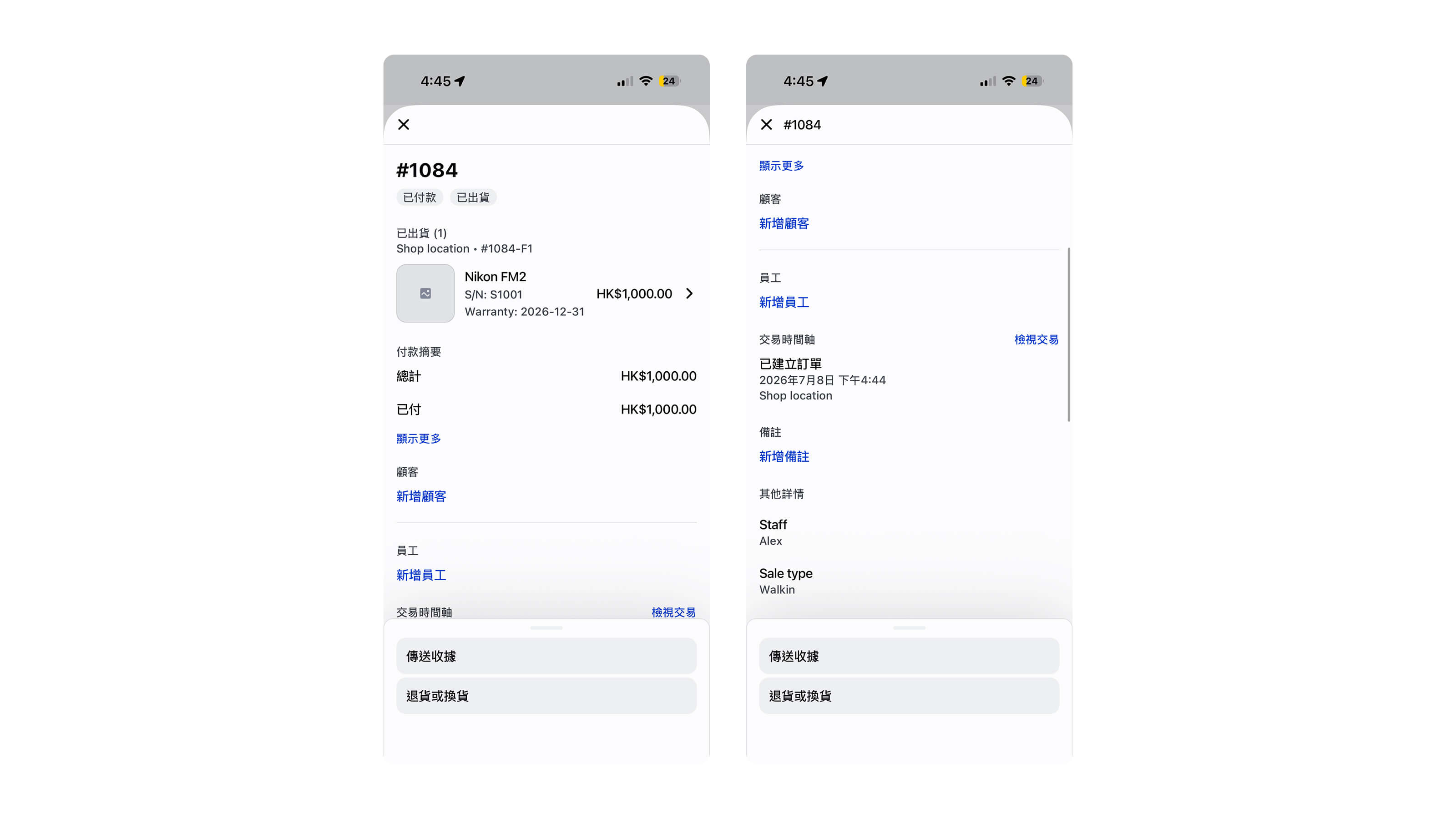
Section titled “Verify after checkout”Open the order in POS or admin:
- Line-item attributes — appear under each product (e.g.
S/N: S1001,Warranty: 2026-12-31) - Cart-level attributes — appear under Other details (e.g.
Staff: Alex,Sale type: Walkin)
- Key lists are set by your admin in Shop metafields — you cannot add permanent new keys from POS unless admin adds them, but Other… works for one-off keys.
- Switching keys in either modal reloads that key’s existing value on the cart or line item.
- Cart and item key lists are separate — cart keys appear only in the tile; item keys appear only in the line-item modal.
See also
Section titled “See also”- Setup — enable the app, create metafields, add the tile
- Tutorials — admin setup screenshots and video walkthrough
- Troubleshooting — empty key lists or load errors
- Install POS Cart Attributes — $4/month, 7-day free trial